06. Managing Environments
Managing Environments
As you saw on the previous page, conda can be used to create environments to isolate your projects. To create an environment, use the following command in your Terminal/Anaconda Prompt.
conda create -n env_name [python=X.X] [LIST_OF_PACKAGES]
Here -n env_name sets the name of your environment (-n for name) and LIST_OF_PACKAGES is the list of packages you want to be installed in the environment. If you wish to install a specific version of Python to be installed, say 3.7, use python=3.7. For example, to create an environment named my_env with Python 3.7, and install NumPy and Keras in it, use the command below.
conda create -n my_env python=3.7 numpy Keras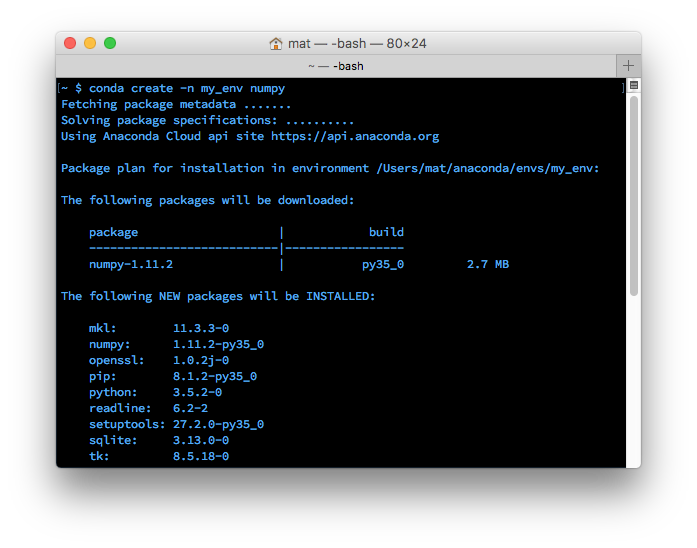
Create my_env environment with the NumPy package in it.
When creating an environment, you can specify which version of Python to install in the environment. This is useful when you're working with code in both Python 2.x and Python 3.x. To create an environment with a specific Python version, use either of the following commands:
conda create -n py3_env python=3
or
conda create -n py2_env python=2I actually have both of these environments on my personal computer. I use them as general environments not tied to any specific project, but rather for general work with each Python version easily accessible. These commands will install the most recent version of Python 3 and 2, respectively. To install a specific version, use conda create -n py python=3.6 for Python 3.6.
Entering (Activate) an environment
Once you have an environment created, you can enter into it by using:
# For  conda 4.6 and later versions on Linux/macOS/Windows, use
conda activate my_env
#For conda versions prior to 4.6 on Linux/macOS, use
source activate my_env
#For conda versions prior to 4.6 on Windows, use
activate my_env
When you're in the environment, you'll see the environment name in the terminal prompt. Something like (my_env) ~ $.
List the Installed Packages in the Current Environment
The environment has only a few packages installed by default, plus the ones you installed when creating it. You can check this out with
conda listInstalling packages in the environment is the same as before: conda install package_name. Only this time, the specific packages you install will only be available when you're in the environment.
Deactivate an Environment
To leave the environment, type conda deactivate (on OSX/Linux) or deactivate (Windows).
# For  conda 4.6 and later versions on Linux/macOS/Windows, use
conda deactivate
#For conda versions prior to 4.6 on Linux/macOS, use
source deactivate
#For conda versions prior to 4.6 on Windows, use
deactivate
Additional Resources
Create environment quiz